
How to Apply Conditional Formatting in Excel
Highlight values, duplicates, dates or formula-based conditions in Excel and manage rule order and cell references.
Quick Answer
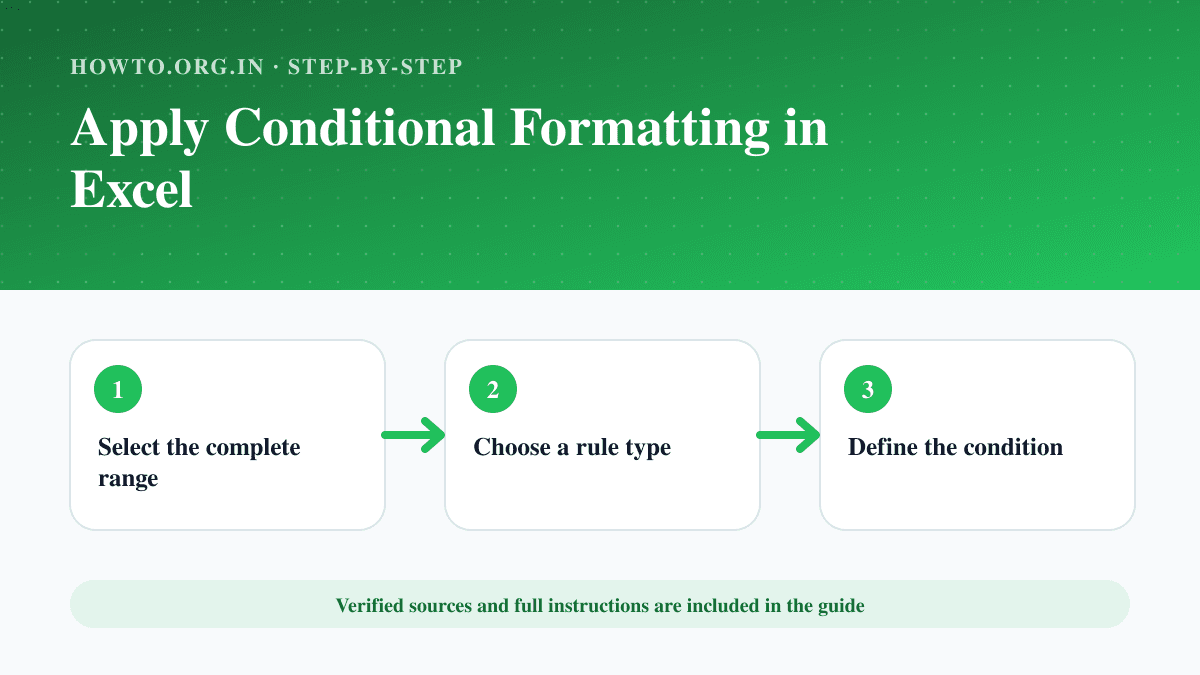
Select the target range, open Conditional Formatting, choose a built-in rule or New Rule, define the condition and format, confirm the Applies to range, then test boundary values and review rule order in Manage Rules.
What You Need
- Excel worksheet
- Target data range
- A condition and visual format
Safety Precautions
- Use color with labels or icons when meaning is important.
- Avoid too many competing rules.
- Check that formulas use the correct relative row.
Step-by-Step Instructions
- Step 1
Select the complete range
Include all rows that should receive the rule.
- Step 2
Choose a rule type
Use highlight, top/bottom, data bars, color scales, icons or a formula.
- Step 3
Define the condition
Enter the value, comparison or true/false formula.
- Step 4
Choose an accessible format
Use restrained color plus another cue when possible.
- Step 5
Check Applies to
Confirm the rule covers the intended cells.
- Step 6
Manage and test rules
Review priority, Stop If True behavior and boundary examples.
Practical Example
To flag duplicate IDs in A2:A400, create a formula rule using =COUNTIF($A$2:$A$400,A2)>1 and apply it to the full range.
Common Mistakes
- Applying the rule to only one cell
- Using the wrong relative reference
- Creating conflicting rule order
Troubleshooting
Formatting shifts by one row
Write the formula relative to the top-left cell of the Applies to range.
A rule never appears
Check priority, Stop If True and whether another rule overrides the format.
Sources and Review
Reviewed by Pramod Tiwari, Editor; official-source verification on 2026-08-08.
- Use conditional formatting to highlight information in Excel — Microsoft Support
Helpful Internal Links
FAQs
Can conditional formatting detect duplicates?
Yes, use the built-in duplicate rule or a COUNTIF formula.
Can a formula drive the rule?
Yes, the formula must evaluate to true or false for each relevant cell.
Why does copied formatting change?
Relative references move; lock only the row or column that should stay fixed.
Related Guides
How to Remove Duplicates in Excel
Learn how to remove duplicates in Excel, choose columns, protect original data, use conditional formatting, troubleshoot mistakes, and read FAQs.
How to Make a Graph in Excel
Learn how to make a graph in Excel, choose chart type, select data, label axes, avoid misleading charts, troubleshoot, and read FAQs.
How to Combine Two Columns in Excel
Learn how to combine two columns in Excel using formulas, ampersand, TEXTJOIN, Flash Fill, separators, mistakes, troubleshooting, and FAQs.
Help us improve this guide
Tell us about an outdated instruction, unclear step, broken link or safety concern. Do not include passwords, account numbers, medical records or other sensitive information.