
How to Clear Cache
Learn how to clear cache on browsers, phones, and apps, what cache means, what gets deleted, when to clear it, mistakes, troubleshooting, and FAQs.
Quick Answer
To clear cache, open the browser, phone, or app settings, find Privacy, Storage, or History, choose cached images/files or app cache, confirm the deletion, then reopen the site or app. Clearing cache can fix loading problems, but it may make sites load slower the first time afterward.
What You Need
- Device or browser access
- Settings access
- Account passwords if clearing cookies too
- A note of what problem you are trying to fix
Safety Precautions
- Read each checkbox before confirming deletion.
- Save important work in web apps before clearing browser data.
- Avoid clearing all app data when only cache is needed.
Privacy and Safety Notes
- Cache is not the same as passwords or full browsing history, but settings screens may offer to delete several data types together.
- Clearing cookies can sign you out of websites.
- Do not delete app data unless you understand what will be removed.
- Work or school devices may have managed settings.
Step-by-Step Instructions
- Step 1
Decide what cache you need to clear
Choose browser cache for website issues, app cache for one app, or phone storage cache for broader app problems.
- Step 2
Open the relevant settings
In browsers, look under Privacy, History, or Clear browsing data. On phones, look under app storage or browser settings.
- Step 3
Select cached files
Choose cached images/files or app cache. Avoid selecting cookies, passwords, or site data unless you intend to remove them.
- Step 4
Choose a time range
For browser problems, try recent data first or all time if the issue continues.
- Step 5
Confirm clearing
Wait for the device or browser to finish.
- Step 6
Restart the browser or app
Close and reopen it, then test the site or app again.
- Step 7
Sign in again if needed
If you cleared cookies or site data, you may need to log back into websites.
Practical Example
Example: A website keeps showing an old version. You open Chrome settings, choose Clear browsing data, select Cached images and files, leave passwords unchecked, clear data, then reload the page.
Common Mistakes
- Deleting cookies unintentionally
- Clearing all app data instead of cache
- Expecting cache clearing to fix internet outages
- Not saving work first
- Forgetting managed device restrictions
Troubleshooting
The site still looks old
Try hard refresh, clear cache for all time, or test in another browser.
I got signed out
You likely cleared cookies or site data. Sign in again and adjust checkboxes next time.
The app still crashes
Update the app, restart the device, check storage, or reinstall if needed.
I cannot find cache settings
Search settings for cache, storage, privacy, or browsing data. Menus differ by browser and OS version.
Helpful Internal Links
FAQs
What is cache?
Cache is temporary saved data that helps websites and apps load faster.
Is clearing cache safe?
Usually yes, but read the options carefully so you do not delete cookies, passwords, or app data unintentionally.
Will clearing cache delete photos or files?
Browser cache does not delete personal photos or documents. App storage options vary, so read the setting before confirming.
How often should I clear cache?
You do not need to clear it constantly. Clear it when troubleshooting loading, display, or storage problems.
Related Guides
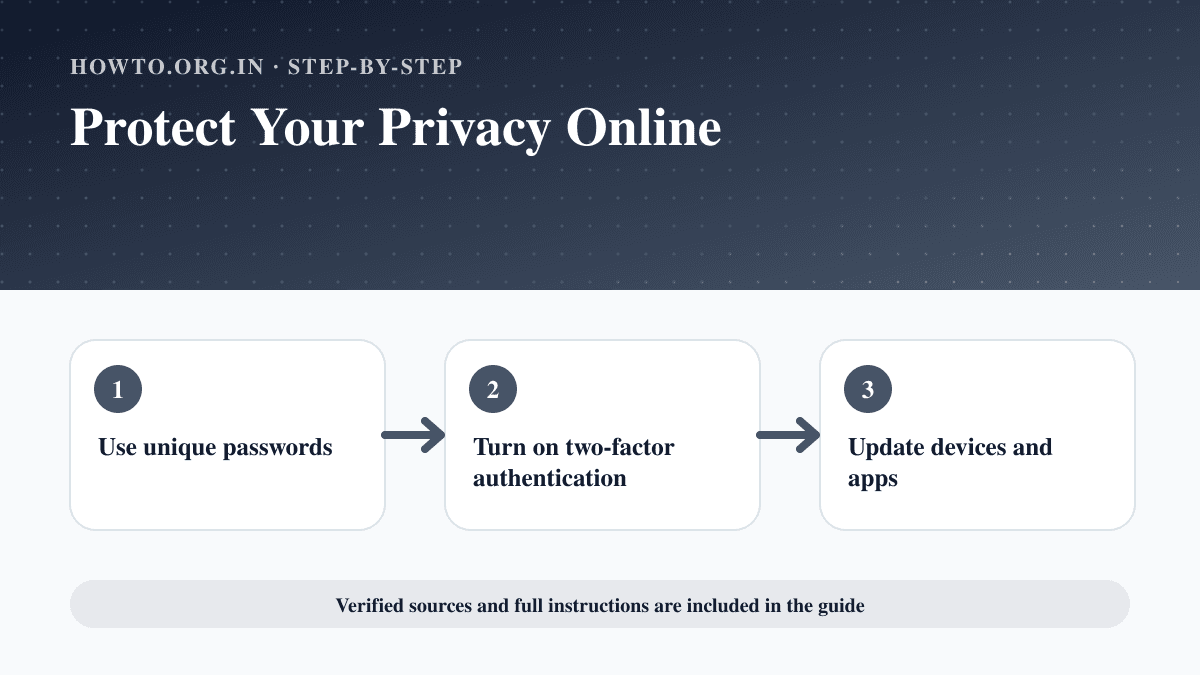
How to Protect Your Privacy Online
Learn practical ways to protect your privacy online with passwords, app permissions, location settings, updates, browsers, data sharing, mistakes, and FAQs.
How to Use Zoom
Learn how to use Zoom as a beginner, including joining a meeting, setting up audio and video, hosting, screen sharing, chat, safety settings, and troubleshooting.
How to Clear Cache and Cookies
Learn how to clear cache and cookies, what each one does, browser steps, sign-in warnings, mistakes, troubleshooting, and FAQs.
Help us improve this guide
Tell us about an outdated instruction, unclear step, broken link or safety concern. Do not include passwords, account numbers, medical records or other sensitive information.