
How to Protect Your Privacy Online
Learn practical ways to protect your privacy online with passwords, app permissions, location settings, updates, browsers, data sharing, mistakes, and FAQs.
Quick Answer
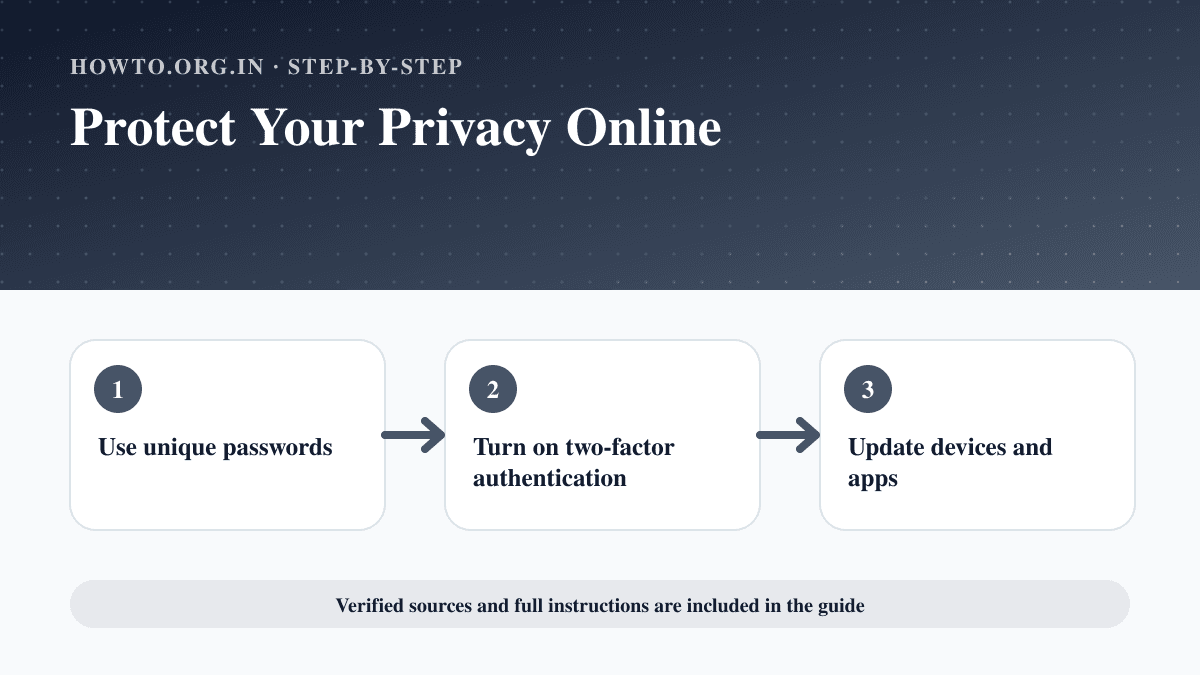
To protect your privacy online, use unique passwords, turn on two-factor authentication, update devices and apps, review app permissions, limit location sharing, use privacy settings on social accounts, avoid oversharing personal details, be careful on public Wi-Fi, and regularly remove or reduce old data you no longer need online.
What You Need
- Password manager or secure password method
- Access to account security settings
- Updated phone, computer, and browser
- List of important accounts
- A few minutes each week for privacy review
Safety Precautions
- Do not lock yourself out of critical accounts; save recovery codes securely.
- Use official app stores and official account settings pages.
- Be careful before deleting evidence if you are dealing with harassment or fraud.
Privacy and Safety Notes
- No checklist can make you completely anonymous or risk-free online.
- Be cautious with any service that promises total privacy or guaranteed protection.
- For stalking, harassment, identity theft, or legal threats, use trusted professional or official support.
- Privacy choices involve tradeoffs between convenience, safety, and account recovery.
Step-by-Step Instructions
- Step 1
Use unique passwords
Each important account should have its own password. A password manager can help generate and store long passwords.
- Step 2
Turn on two-factor authentication
Enable 2FA on email, banking, social, cloud storage, and work accounts. Save backup codes in a safe place.
- Step 3
Update devices and apps
Install security updates for your phone, computer, browser, and apps. Turn on automatic updates where practical.
- Step 4
Review app permissions
Check which apps can access location, camera, microphone, contacts, photos, and background activity. Remove access that is not needed.
- Step 5
Limit location sharing
Turn off always-on location access unless the app truly needs it. Avoid posting real-time location publicly.
- Step 6
Tighten social media privacy
Review who can see posts, friends, phone number, email, profile details, and tagged content.
- Step 7
Reduce public personal data
Search your name occasionally and remove old profiles or exposed details where possible.
- Step 8
Use safer browsing habits
Avoid suspicious links, use HTTPS sites, log out on shared devices, and be careful on public Wi-Fi.
- Step 9
Repeat the review regularly
Privacy settings change. Review important accounts every few months.
Practical Example
Example: You start with your email account because it controls password resets. You create a unique password, turn on 2FA, save recovery codes, update your phone, then review social media privacy and remove location access from apps that do not need it.
Common Mistakes
- Reusing the same password everywhere
- Ignoring email account security
- Granting location access to every app
- Posting travel plans in real time
- Assuming private browsing mode hides everything
- Trusting unknown privacy tools without research
Troubleshooting
I have too many accounts to fix
Start with email, banking, cloud storage, social accounts, and work accounts. Then handle the rest in batches.
I am afraid of losing 2FA access
Save backup codes, add a recovery method, and keep your password manager recovery process secure.
My information appears on people-search sites
Use the site opt-out process where available. Document links before removal if harassment or fraud is involved.
An app stops working after permission changes
Restore only the permission needed for that feature, such as camera for video calls or location for maps.
Helpful Internal Links
FAQs
Can I be completely private online?
Complete privacy is not realistic for most people. The goal is to reduce unnecessary exposure and improve account security.
Is a VPN enough to protect privacy?
A VPN can hide some network details from some parties, but it does not replace strong passwords, updates, privacy settings, or careful sharing.
What account should I secure first?
Start with your primary email because it often controls password resets for other accounts.
Should I use a password manager?
A reputable password manager can make unique passwords easier. Use one you trust and protect its master password and recovery method.
Related Guides
How to Find IP Address
Learn how to find your public IP, private IP, router IP, and website IP address on Windows, Mac, Android, iPhone, and browsers with simple steps.
How to Backup Your Computer
Learn how to backup your computer with external drives, cloud backups, important files, automatic schedules, restore checks, common mistakes, and FAQs.
How to Record Your Screen
Learn how to record your screen on Windows, Mac, iPhone, and Android with privacy checks, audio options, common mistakes, troubleshooting, and FAQs.
Help us improve this guide
Tell us about an outdated instruction, unclear step, broken link or safety concern. Do not include passwords, account numbers, medical records or other sensitive information.