
How to Create a Strong Password
Learn how to create a strong password with passphrases, password managers, MFA, unique passwords, mistakes, troubleshooting, and FAQs.
Quick Answer
To create a strong password, make it long, unique for each account, hard to guess, and preferably generated by a password manager. Use multifactor authentication for important accounts and avoid reusing passwords across email, banking, shopping, and social media.
What You Need
- Password manager or secure password generator
- Important account list
- Multifactor authentication option
- Recovery email or phone
- Time to update reused passwords
Safety Precautions
- Avoid personal details such as names, birthdays, addresses, pets, or phone numbers.
- Do not reuse passwords after a breach.
- Use a trusted password manager rather than saving passwords in plain notes.
- Keep recovery options current.
Privacy and Safety Notes
- Never share passwords in chat, email, or screenshots.
- Use unique passwords for every important account.
- Enable multifactor authentication where possible.
- Be careful with phishing pages that imitate real login screens.
Step-by-Step Instructions
- Step 1
Use a password manager
A password manager can generate and remember long unique passwords for each account.
- Step 2
Make it long
If you must create one manually, use a long passphrase that is not a famous quote or personal fact.
- Step 3
Make it unique
Never use the same password on email, banking, shopping, work, and social accounts.
- Step 4
Avoid predictable substitutions
Passwords like P@ssw0rd or Company2026 are easy to guess.
- Step 5
Turn on MFA
Use an authenticator app, passkey, hardware key, or other multifactor option where available.
- Step 6
Update weak or reused passwords
Start with email, bank, cloud storage, work, and social accounts.
- Step 7
Watch for phishing
Check the website address before entering credentials.
Practical Example
Example: Instead of reusing one short password, you use a password manager to create a unique 20-character password for each account and turn on MFA for email.
Common Mistakes
- Reusing passwords
- Using personal details
- Saving passwords in an unprotected note
- Sharing passwords
- Ignoring breach alerts
- Using only short complex-looking passwords
Troubleshooting
I cannot remember many passwords
Use a reputable password manager and remember one strong master passphrase.
An account says my password was compromised
Change it immediately and change any other account using the same password.
MFA feels inconvenient
Enable it first on email and financial accounts, where takeover risk is highest.
I think I entered a password on a fake page
Change the password from the official site and review account activity.
Helpful Internal Links
FAQs
Is length more important than symbols?
Length and uniqueness are usually more important than hard-to-remember symbol tricks.
Should I use a password manager?
For most people, yes. It helps create and store unique passwords safely.
What is a passphrase?
A passphrase is a longer password made from several words or a memorable sentence pattern.
What is multifactor authentication?
It is an extra login step, such as an authenticator code, passkey, or security key.
Related Guides
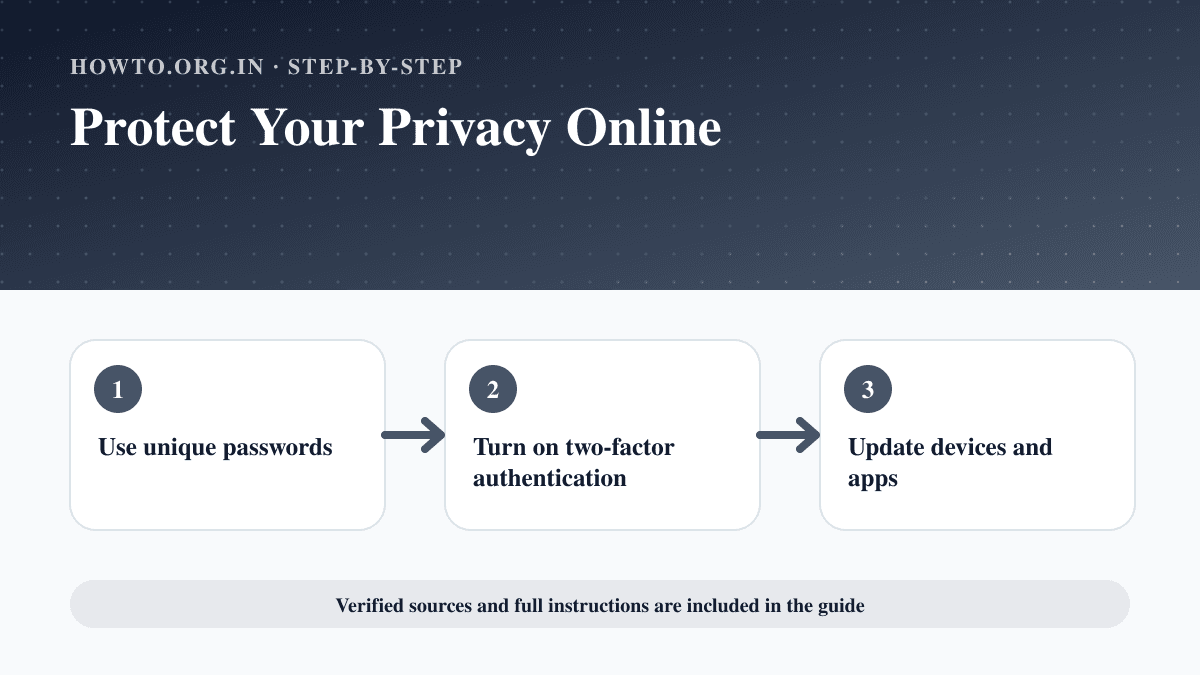
How to Protect Your Privacy Online
Learn practical ways to protect your privacy online with passwords, app permissions, location settings, updates, browsers, data sharing, mistakes, and FAQs.
How to Use Facebook
Learn how to use Facebook as a beginner, including profile setup, posting, friends, groups, privacy settings, safety tips, mistakes, and FAQs.
How to Use Instagram
Learn how to use Instagram with account setup, posting, Reels, Stories, privacy settings, safety tips, common mistakes, troubleshooting, and FAQs.
Help us improve this guide
Tell us about an outdated instruction, unclear step, broken link or safety concern. Do not include passwords, account numbers, medical records or other sensitive information.