
How to Use Facebook
Learn how to use Facebook as a beginner, including profile setup, posting, friends, groups, privacy settings, safety tips, mistakes, and FAQs.
Quick Answer
To use Facebook, create or sign in to an account, complete only the profile details you want to share, review privacy settings, add friends carefully, follow pages or groups, post updates or photos, use Messenger if needed, and avoid sharing private information publicly.
What You Need
- Facebook account
- Email or phone access
- Strong password
- Privacy preference
- Profile photo if desired
- Internet connection
Safety Precautions
- Use official Facebook apps or website only.
- Check who can see your posts, friend list, and profile details.
- Do not accept every friend request.
- Report or block abusive, suspicious, or impersonating accounts.
Privacy and Safety Notes
- Review audience settings before posting.
- Use a strong password and two-factor authentication if available.
- Be cautious with scams, fake profiles, suspicious links, and requests for money.
- Avoid posting private address, ID, school, workplace, travel plans, or financial information publicly.
Step-by-Step Instructions
- Step 1
Create or sign in
Use the official Facebook app or website and keep your login details private.
- Step 2
Set up your profile
Add only the name, photo, bio, work, education, or location details you are comfortable sharing.
- Step 3
Review privacy settings
Check post audience, profile visibility, tagging, search visibility, and contact settings.
- Step 4
Add friends carefully
Search for people you know and review requests before accepting.
- Step 5
Use the feed
Scroll updates from friends, pages, and groups, and use reactions or comments thoughtfully.
- Step 6
Create a post
Write text, add a photo if needed, choose the audience, and publish only when ready.
- Step 7
Join groups and pages
Follow interests, local communities, or brands, and read group rules before posting.
- Step 8
Use Messenger carefully
Message people you trust and avoid clicking suspicious links.
Practical Example
Example: You create an account, make posts visible to Friends, add family members, join a local community group, and turn on login alerts.
Common Mistakes
- Posting publicly by accident
- Accepting unknown requests
- Clicking suspicious links
- Oversharing private details
- Ignoring account security
- Sharing misinformation without checking sources
Troubleshooting
I cannot find privacy settings
Open Settings and Privacy, then review audience and visibility options.
I see unwanted posts
Unfollow, snooze, hide, or leave pages and groups.
I think an account is fake
Do not engage. Report, block, and warn friends if needed.
I forgot my password
Use the official account recovery flow and update recovery email or phone after regaining access.
Helpful Internal Links
FAQs
Can I use Facebook without posting?
Yes. You can use it to read updates, join groups, or message without posting publicly.
What is the difference between friends and followers?
Friends are mutual connections. Followers may see public updates depending on settings.
Should my profile be public?
Most beginners should limit personal posts and profile details to friends or a smaller audience.
How do I make Facebook safer?
Review privacy settings, use two-factor authentication, and avoid unknown links or requests.
Related Guides
How to Use TikTok
Learn how to use TikTok as a beginner, including account setup, For You feed, posting, privacy settings, safety controls, mistakes, and FAQs.
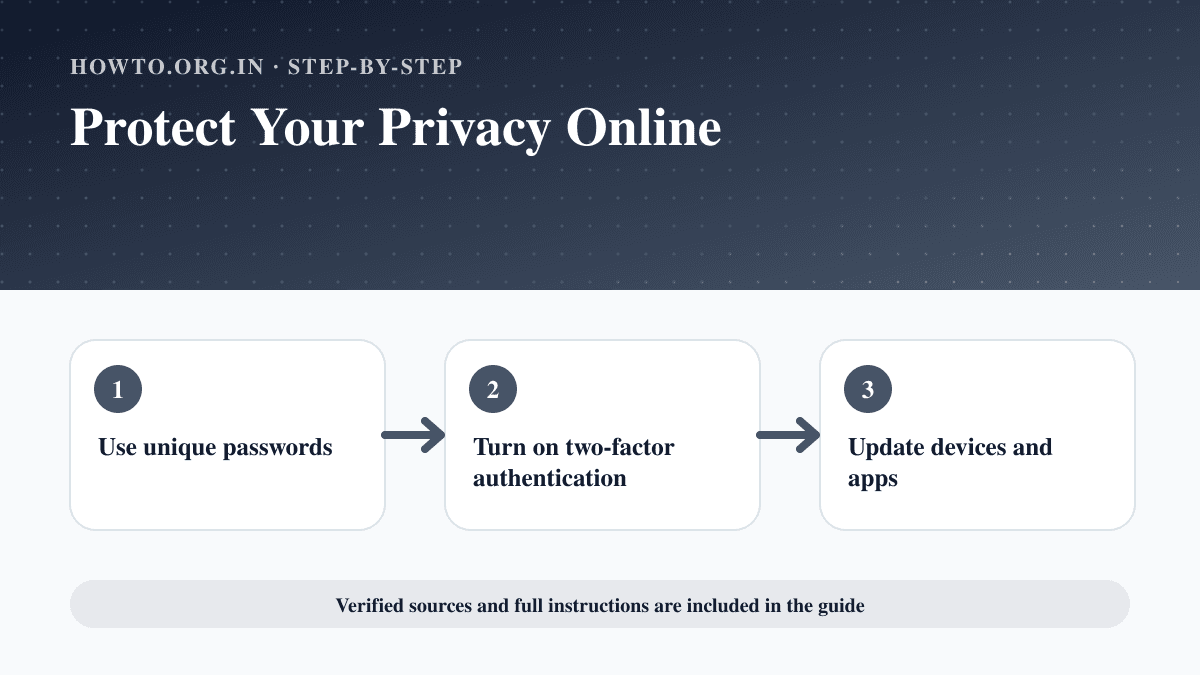
How to Protect Your Privacy Online
Learn practical ways to protect your privacy online with passwords, app permissions, location settings, updates, browsers, data sharing, mistakes, and FAQs.
How to Create a Strong Password
Learn how to create a strong password with passphrases, password managers, MFA, unique passwords, mistakes, troubleshooting, and FAQs.
Help us improve this guide
Tell us about an outdated instruction, unclear step, broken link or safety concern. Do not include passwords, account numbers, medical records or other sensitive information.