
How to Deactivate Facebook
Learn how to deactivate Facebook using Accounts Center, what deactivation means, how it differs from deletion, privacy checks, mistakes, and FAQs.
Quick Answer
To deactivate Facebook, open Facebook settings, go to Accounts Center, choose Personal details, Account ownership and control, then Deactivation or deletion. Select the Facebook profile, choose Deactivate account, follow the prompts, and confirm. Deactivation is temporary; deletion is permanent after the grace period.
What You Need
- Facebook login
- Access to email or phone
- Password
- Accounts Center access
- Decision between deactivation and deletion
- Optional data download
Safety Precautions
- Do not confuse temporary deactivation with permanent deletion.
- Do not share login codes with anyone offering account help.
- If you manage Pages, groups, ads, or business assets, transfer access before deactivating.
- Check Messenger behavior before deciding.
Privacy and Safety Notes
- Download important photos, posts, or messages before major account changes.
- Deactivation may not remove all messages already sent to other people.
- Review connected apps and Meta accounts before confirming.
- Use only official Facebook or Meta pages.
Step-by-Step Instructions
- Step 1
Open Facebook settings
Use the Facebook app or website and sign in to the account you want to deactivate.
- Step 2
Go to Accounts Center
Open Settings and privacy, then Accounts Center.
- Step 3
Find account control
Choose Personal details, then Account ownership and control.
- Step 4
Choose deactivation or deletion
Select Deactivation or deletion and choose the Facebook profile.
- Step 5
Pick deactivate account
Select Deactivate account if you want a temporary break rather than permanent removal.
- Step 6
Follow prompts
Enter your password if asked, choose a reason, and review Messenger/Page notes.
- Step 7
Confirm and test
Confirm deactivation, then avoid logging back in unless you want to reactivate.
Practical Example
Example: You want a one-month break from Facebook. You download your photos, check Page access, select Deactivate account in Accounts Center, and keep Messenger only if desired.
Common Mistakes
- Choosing deletion when you meant deactivation
- Forgetting Page or business access
- Not downloading data
- Logging back in and reactivating accidentally
- Using unofficial support links
Troubleshooting
I cannot find the setting
Look in Accounts Center under Personal details and Account ownership and control.
My account reactivated
Logging back in can reactivate it. Stay signed out if you want it inactive.
Messenger still works
Facebook and Messenger behavior can differ; review Messenger deactivation settings separately.
I forgot the password
Use Facebooks official account recovery before changing account status.
Helpful Internal Links
FAQs
Is deactivating Facebook permanent?
No. Deactivation is temporary. Deletion is the permanent option after the waiting period.
Can people see my profile after deactivation?
Your profile is generally hidden, but some information such as messages may remain visible to recipients.
Can I reactivate later?
Yes. Signing back in usually reactivates the account.
Should I download my Facebook data first?
It is wise if you want a copy of photos, posts, or other account history.
Related Guides
How to Use Facebook
Learn how to use Facebook as a beginner, including profile setup, posting, friends, groups, privacy settings, safety tips, mistakes, and FAQs.
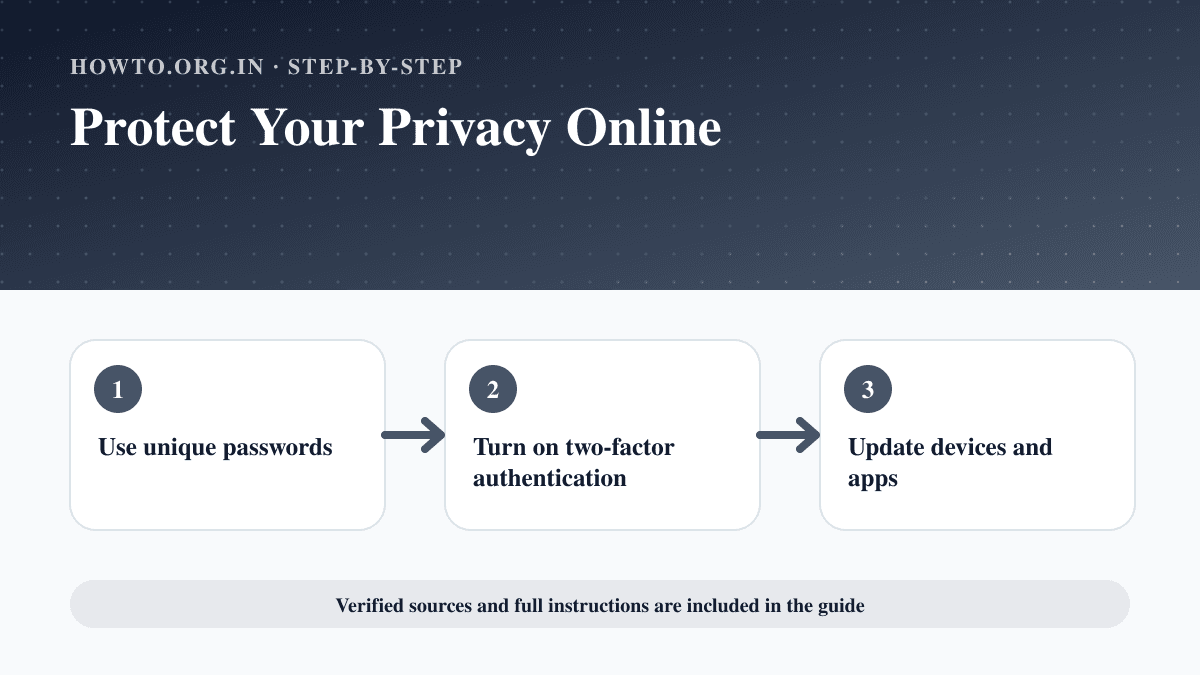
How to Protect Your Privacy Online
Learn practical ways to protect your privacy online with passwords, app permissions, location settings, updates, browsers, data sharing, mistakes, and FAQs.
How to Create a Strong Password
Learn how to create a strong password with passphrases, password managers, MFA, unique passwords, mistakes, troubleshooting, and FAQs.
Help us improve this guide
Tell us about an outdated instruction, unclear step, broken link or safety concern. Do not include passwords, account numbers, medical records or other sensitive information.